How to Block a Program in Windows Firewall

How to Block a Program in Windows Firewall
This tutorial will take you every single step of the way through creating a Windows Firewall Rule to block a specific program (whichever you want) in Windows.
Press the key combination Windows logo key + R to open the Run dialog.
Type wf.msc in the Run dialog and press Enter. This will open the Windows Firewall with Advanced Security window.
Click on Outbound Rules in the left-side menu of the Windows Firewall window:

Click on New Rule… on the right-side menu:

In the New Outbound Rule Wizard, select Program in the Rule Type window and click Next:

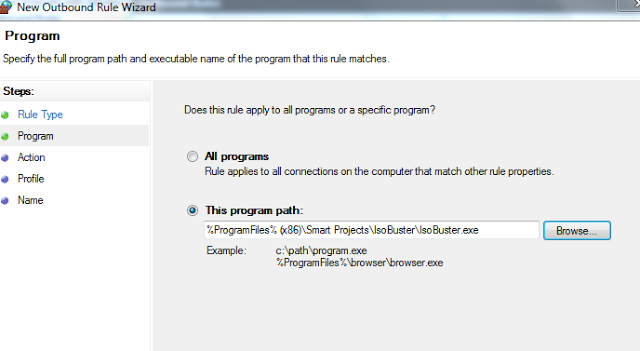
In the Program window, either manually type the full path and file name of the program you want to block, or click on the Browse button to select the program file. Click Next to continue.
In the Action window, select Block the connection and click Next:

In the Profile window, select all options and click Next:

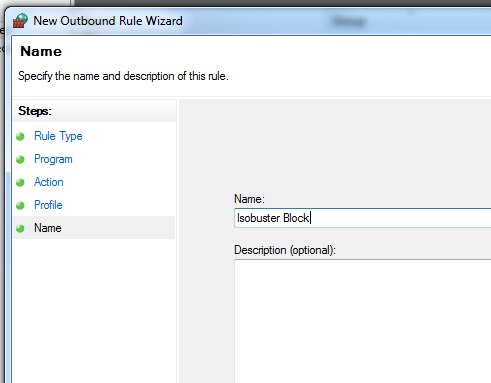
In the Name window, give a name to the new rule (e.g., Isobuster or any name to help you identify it later) and click Finish: